Showing posts with label fix. Show all posts

Tuesday

Image Title Issue ~ Fix & Freebie

I know many of us have struggled for a long time with the "Image" gadget. Gone were the days when we could leave the "Title" area blank.  It had been nice when using sidebar tags because, well let's face it, using a title above a title is a bit redundant. ;~)

Recently while wandering through blogland I happened upon a fix (yay!).  It seems that whenever you type in a small snippet of code, it tricks the gadget into thinking there's a title so when published, nothing shows up. This enables all of us using tags to once again use them as section titles, whoot!

Here is the code:
<!--->

Just type or copy it into the "Title" area of the Image gadget, insert your image and then click save ~ you'll be all set!
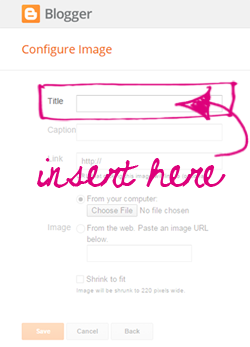

To celebrate I'm offering this free set of sidebar tags! Just click the button below to download and save the set to your computer. They can be used as section titles or even linked images if you prefer.   I've included a lot of extra titles too (more than my regular sets) so you've got a lot more options for uses. Just remember to add that snippet of code above and you'll be all set!


Enjoy~

Thursday

Update to Previous Post

Here's a bit more info from my last post about missing images, just in case there was some confusion... 
Paid Users: If you purchased a banner or a complete theme from me in the past then contact me through email (click my signature below) and I will send you the link to the new theme page. That way you will have all of the codes for that theme ~ no additional cost is required.

Free Users: If you were using one of my blog themes that used to be free and you still have the code installed on your blog then you can follow the instructions in my last post to fix the issue. The images will return and there will be no cost to you. This way my previous freebie users are still included ~ love you guys too♥

Installations: If I installed one of my themes on your blog in the past then just follow this tutorial to add me as a guest: http://www.plumroselane.com/tutorial-add_guest.html I will re-install everything so your blog is back to what it was before. You'll need my email address for the tutorial so go ahead and click my signature at the end of this posting to get that and while you're at it you can send me a quick message letting me know you'll be adding me. ;~)

And remember that all of my "Just Backgrounds" are still available for free and will remain that way. You can click this title to access the page.

Hope that helps everyone and thanks for your patience! *shakes fist at gremlins*


Tuesday

Oops~

Don't you hate it when you make a mistake, I know I do?! And of course there's nothing worse than making one in public. *sigh* It seems my most recent mistake was while creating the Return to Oz theme I completely forgot about Mr. Scarecrow, sheesh! I mean really... poor guy, completely left out in the cold. And the irony is he's my favorite character ~ who doesn't love to "...while away the hours and consulting with flowers..."!? Funny story ~ that song used to pop into my head whenever I went through something in my last marriage, I'm not sure if I wished I had a brain or wished my ex did. I digress....

Anyhoo, for all of you who picked up a free copy of the Return to Oz banner, you can grab the newer version which now includes the Scarecrow. Just click on the title or image above to view the theme page ~ the banners are posted at the bottom. The free versions will be available under Sunday, August 5th.

Enjoy~

post signature

Wednesday

Blogger Photo Issues (!)

Recently a customer contacted me to help out with an issue she was having with her Blogger profile picture. Instead of seeing her image show up whenever she left comments on posts she would see this awful black exclamation point instead. I was able to figure out a fix for her and so I'm sharing it here with you ~

Remember, you can enlarge any image below by clicking on it.

I began by visiting her profile page ~ you can get to your own profile page by logging into your blog and going to your "Dashboard"...

Once there click on the "Edit Profile" link...

This takes you to the page where you control what people see when they visit your "About Me" page...

It's a log page so I've only shown a portion of it above.

What I found was that by simply reinstalling the customer's profile photo she no longer experienced the photo error so regardless of whether your photo is showing up or not, we're going to reinstall it from your own computer. So be sure you have a copy of your photo on hand before you continue on to the next step.

Now, scrolling down to the "Photograph" area, if you have an image there click on the "Remove image" link...

Now click the "Browse" button to locate your photo on your computer...


Scrolling down to your own profile photo, click on the image and then click the "Open" button...


Your photo will now appear in the box...


To save your changes, scroll down to the bottom of the page and click the "Save Profile" button...
That's it!

I know Blogger has been undergoing loads of changes lately including how they handle post images so my guess is this issue has something to do with those changes. Whatever the case I hope this fix was helpful to all of you as well.

Enjoy~

post signature

Followers & Comments ~ What's up with that??

In an earlier post one of my visitors asked about the issues she's been experiencing with disappearing Followers and the inability for visitors to leave comments. I think we've all noticed how glitchy Blogger has been lately with these two aspects and I'm sure we're equally hoping a fix is just around the next blogger corner.

While the Followers issue seems to be ongoing and affecting most, if not all of us, sadly I haven't found anything that directly affects or repairs this issue. On the other hand I have successfully assisted some of my customers in overcoming the Comments issue and so I'll share with you know how we accomplished that...


The first step is to delete your browser's cookies, this is helpful as it can affect functionality and clear up online glitches but I must warn you that it will also log you out of all the websites you're automatically logged into. What I use to remedy this situation is Xmarks ~ it's a great tool that helps remember all of my log-in information so I don't have to. I've found it to be a free and reliable service so feel free to use them.

Once again you'll need to determine what browser you're using to figure out how to delete your cookies. I've included links below for how to remove cookies from the most commonly used browsers...

❀
Internet Explorer

❀Firefox

❀Chrome

❀Safari

Click on the above link to go to a page that discusses how to remove cookies for your specific browser. Or you can also use this page which lists more help for deleting cookies from specific browsers.

After you've finished removing the cookies, I also recommend restarting your computer. This helps to ensure that the next time you start your browser you're getting a fresh clean start.


Once you've done this, I suggest visiting the area of your blog that controls comments. To do this, log into your blog and navigate to the "Comments" area under the "Settings" tab, as in the example screen shot below from my own blog...

On this page is where you can set all of the specific attributes related to comments on your blog. Now this page can be individualized in many ways and much of it is up to personal tasted but I've included a screen shot from my own blog so you have a guideline on how you might want to have your options set....
remember ~ to view a larger version just click on the image above

The most important areas to pay attention to are the "Who Can Comment?" area and the "Comments Default for Post". You'll want both of these to be set up so you don't have to worry about postings on a case by case basis. To do this, I recommend setting the "Who Can Comment" to "Registered Users", this helps lesson the amount of spam comments and the "Comments Default for Post" to "New Posts Have Comments" so that visitors can automatically comment.

When you're finished making any adjustments, be sure to click the "Save" button at the bottom.

While I don't profess to be a guru of any means, and I certainly can't make any guarantees, I do hope these topics have been helpful and maybe even relieved some of the issues you've been experiencing.

post signature